
Translations
Serve customers worldwide with multi-language support for the product customizer.
Overview
Podmaster supports over 100 languages for the product customizer interface. This means your customers can use the design editor in their preferred language, improving the shopping experience for international audiences.
Setting Up Languages
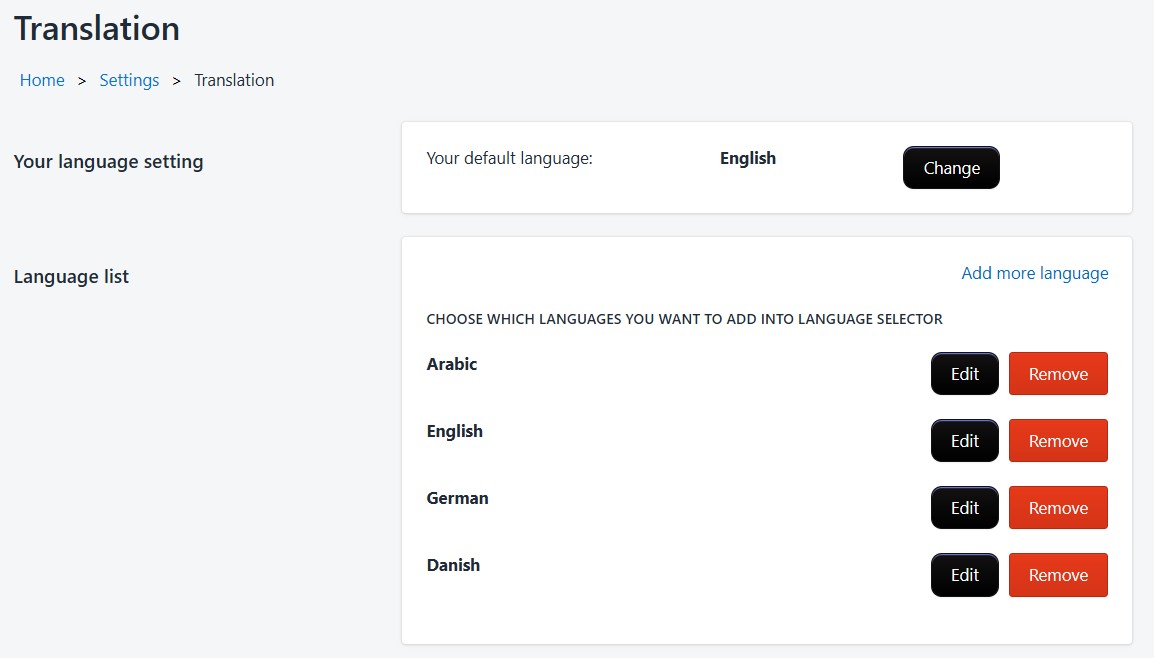
Set default language
Go to Settings → Translation and select your store's primary language.
Add languages
Click "Add Language" and search for the languages you want to support. The customizer will auto-detect the customer's browser language.
Review translations
Each language comes with auto-translated strings via the MyMemory API. Review and customize any translations that need adjustment.
Custom Translations
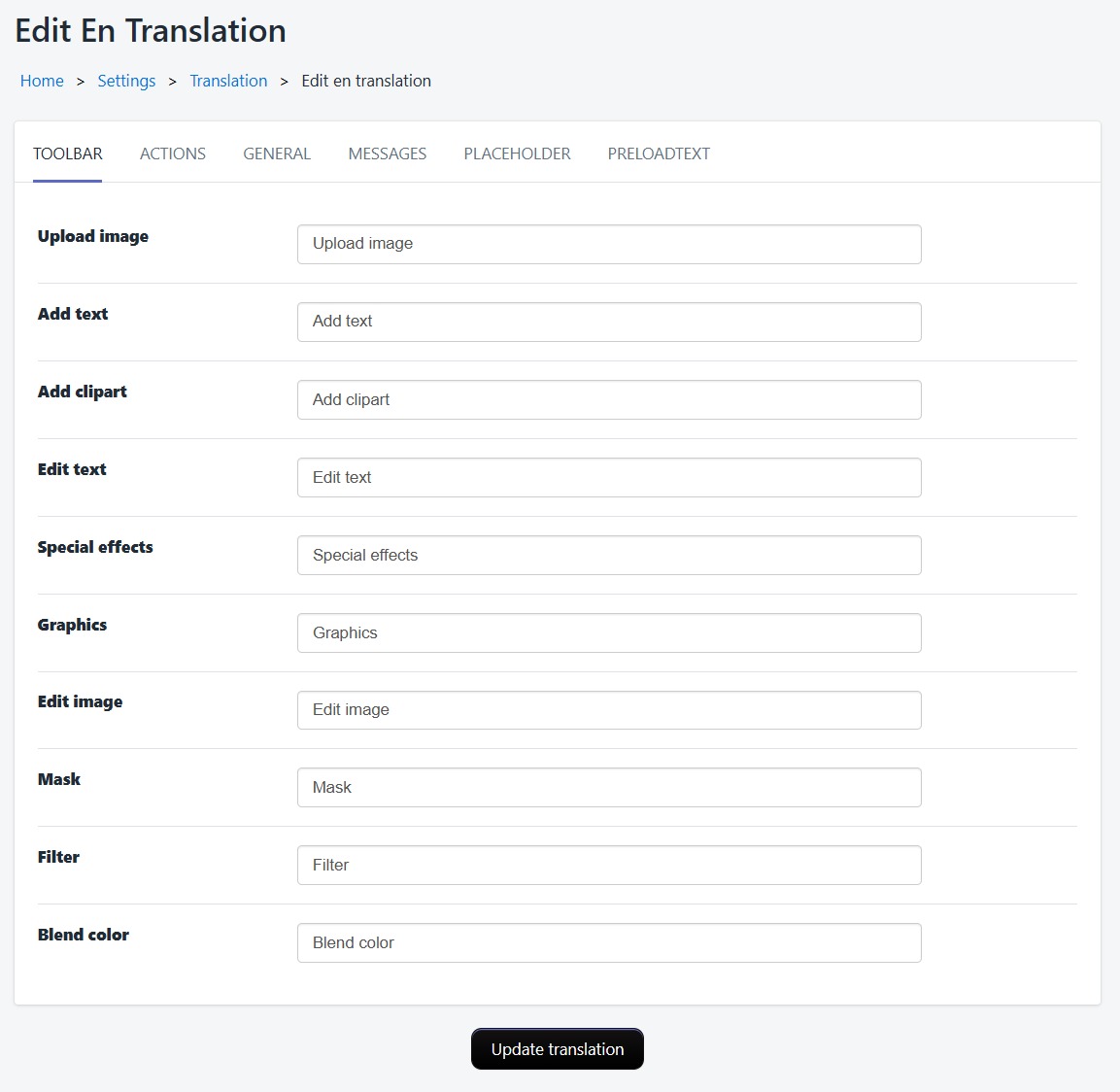
Override any auto-translated string with your own text:
- Select the language you want to edit
- Browse the translation keys (button labels, tooltips, messages, etc.)
- Edit any string and click Save
Custom translations take priority over auto-translations.
Automatic Language Detection
The customizer automatically detects the customer's browser language and loads the appropriate translation. If the detected language isn't configured, it falls back to your default language.