
Settings
Configure Podmaster's integrations, appearance, and behavior.
Settings Hub
The Settings page is organized into sections, each accessible from the settings cards:
Printful Integration
Connect Podmaster to your Printful account for automatic dropshipping:
- API Key — Enter your Printful API key (get it from Printful Dashboard → API)
- Validate — Test the connection to confirm the key works
- Webhooks — Automatically registered for order status updates (shipped, returned, cancelled)
- Process Dropshipping — Toggle to enable/disable automatic order routing to Printful
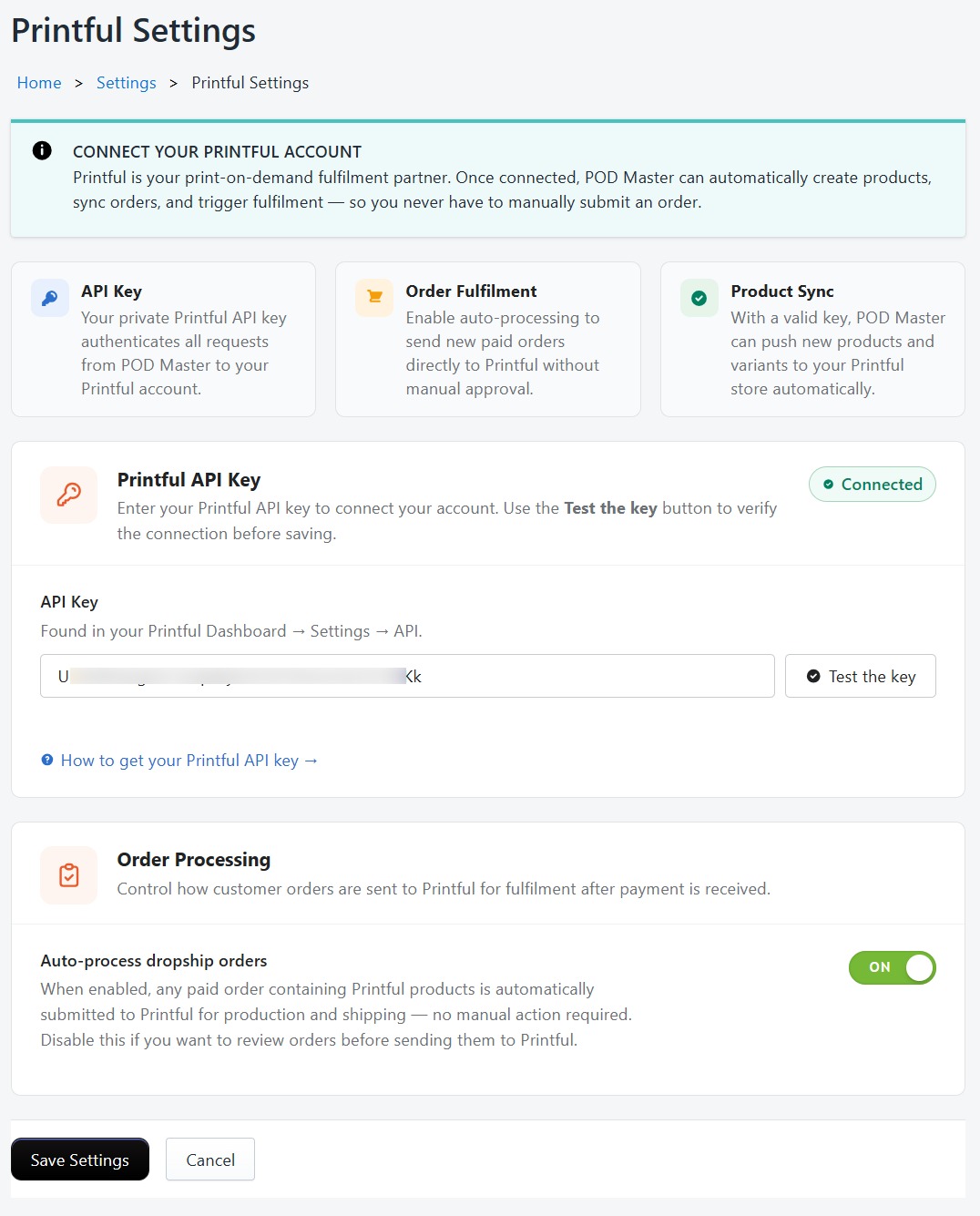
Printful integration requires a Business plan or higher.
AI Settings
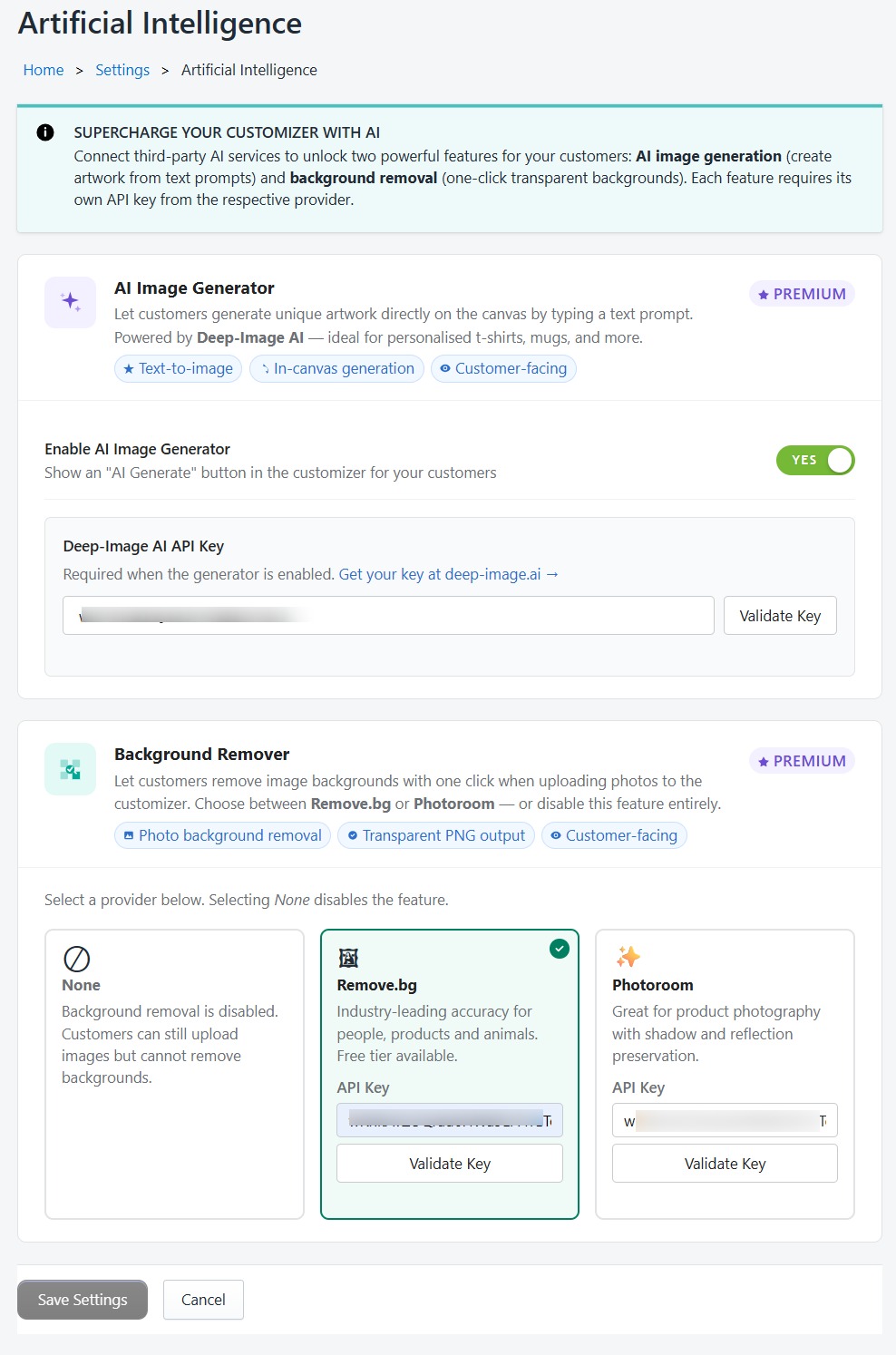
Enable and configure AI-powered tools. See the AI Tools page for full details.
- Toggle AI Image Generator (DeepAI)
- Toggle AI Background Remover
- Enter and validate API keys for DeepAI, Remove.bg, and Photoroom
Custom Product Settings
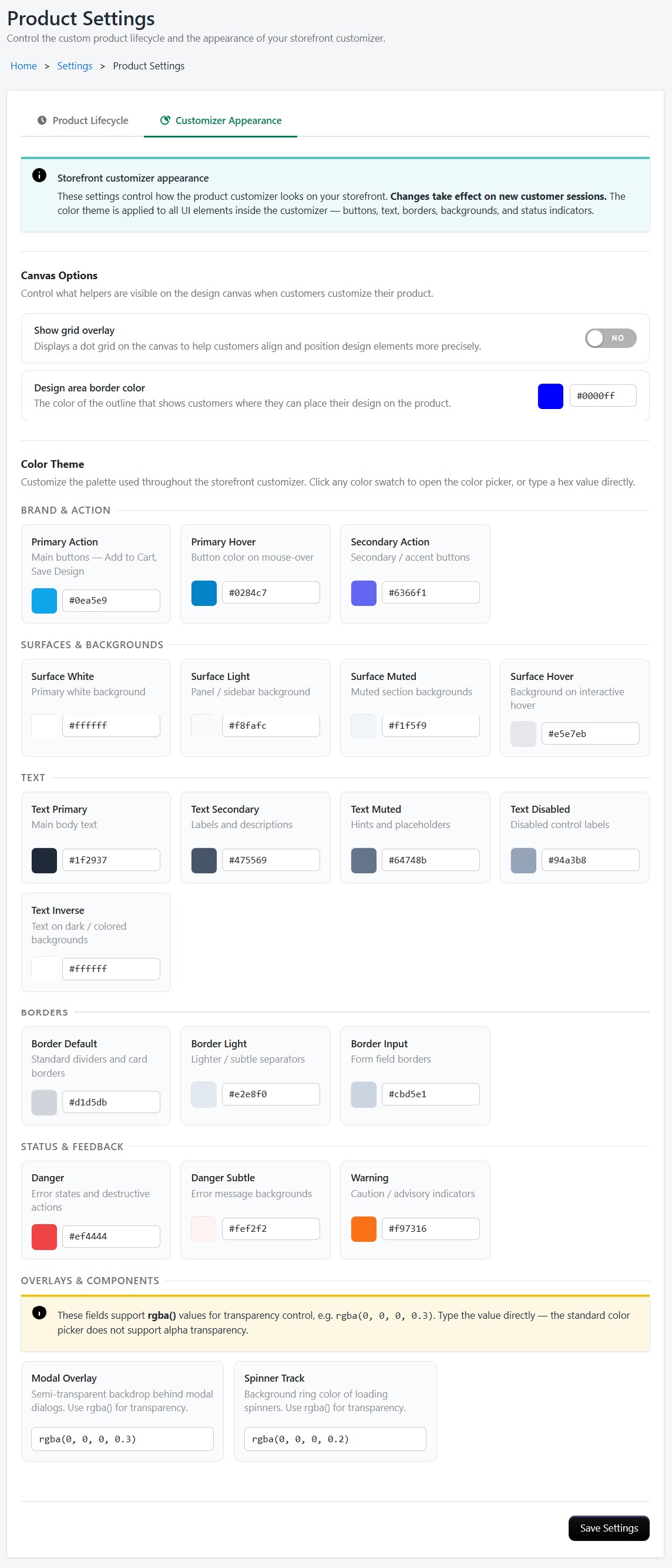
- Enable/Disable — Turn the customizer on or off globally
- Button Text — Customize the text of the "Customize" button (e.g., "Design Your Own")
- Button Style — Change the button color and styling to match your theme
Print Profiles & Print Connector
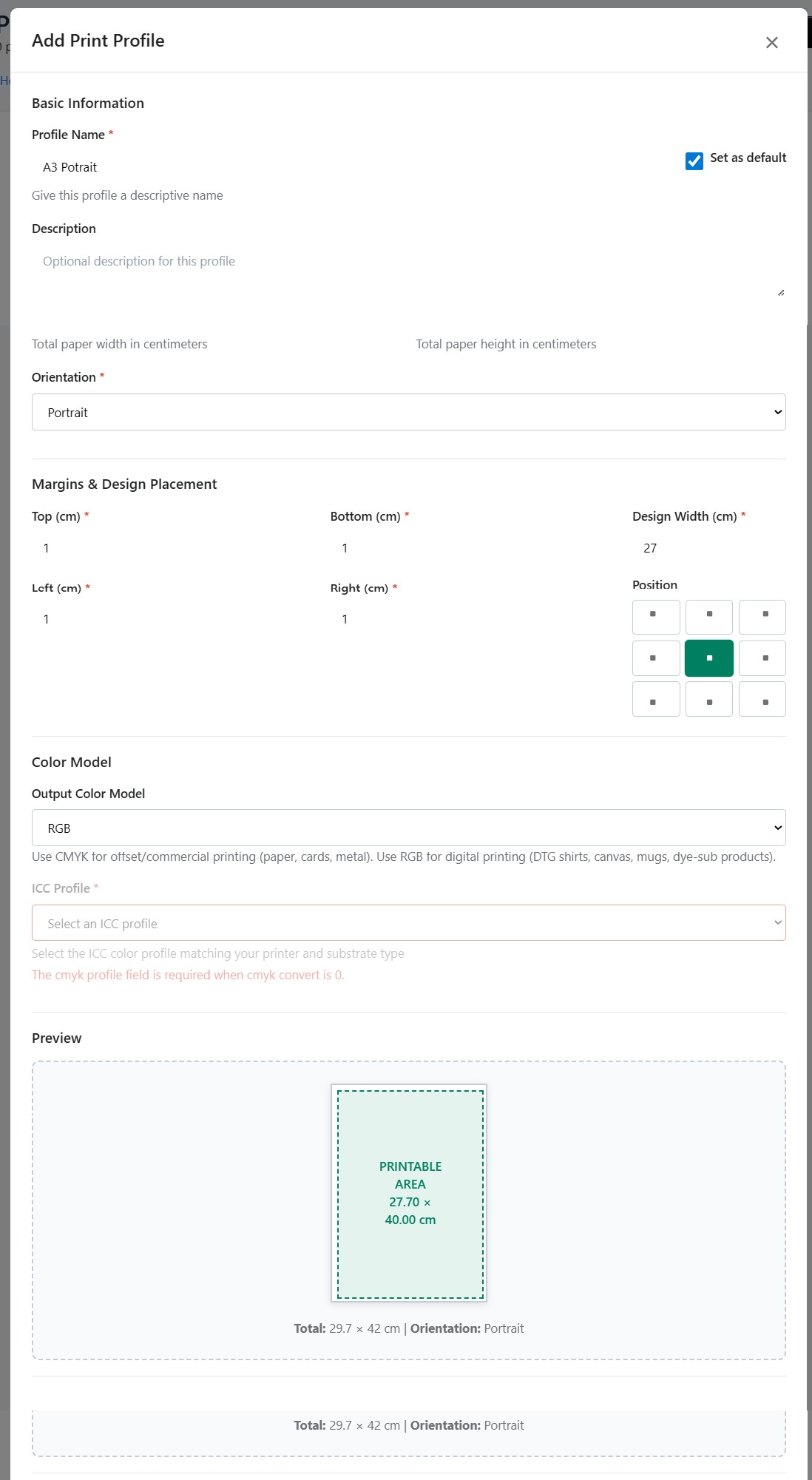
Print Profiles define how designs are printed on physical products. Each profile stores paper size, margins, design placement, color mode, and CMYK conversion settings.
Creating a Print Profile
Go to Settings → Print Profiles and click Create Profile. Configure the following:
| Field | Description |
|---|---|
| Profile Name | A descriptive name (e.g., "DTG Front 12x16") |
| Paper Size | Width and height in the selected unit (inches/cm/mm) |
| Margins | Top, bottom, left, and right margins |
| Design Width | The printed width of the design on the garment |
| Design Position | 9-position grid placement (top-left, top-center, top-right, middle-left, center, middle-right, bottom-left, bottom-center, bottom-right) |
| Color Mode | RGB (default) or CMYK for professional printing |
| ICC Profile | Upload a custom ICC color profile for accurate CMYK conversion (optional) |
CMYK Conversion & ICC Profiles
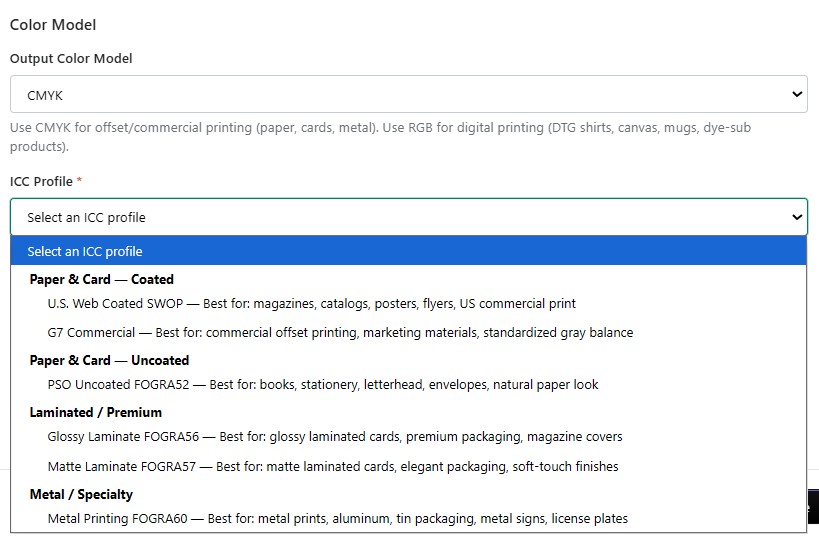
When a print profile is set to CMYK color mode, designs are automatically converted from RGB to CMYK during PDF generation. You can optionally upload an ICC profile (.icc/.icm file) for device-specific color accuracy. If no ICC profile is uploaded, a standard CMYK conversion is used.
Assigning Print Profiles to Product Sides
Print profiles can be assigned per-side on the product edit page:
- Go to Products → Edit and find the side card for the desired product side
- Click the Print Profile button on the side card
- Select a print profile from the dropdown — a preview of the profile settings will appear below
- Click Update to save the assignment
Once assigned, a green checkmark indicator appears on the Print Profile button to confirm the side has a profile configured. The assigned profile is used when generating print-ready PDFs for that product side.
Print Connector
- Install the Print Connector Chrome extension to auto-detect local printers
- Test print to verify layout, positioning, and color output
- Download the installer directly from the Print Profiles settings page
For full setup instructions, see the Print Connector & Print Profiles guide.
API Settings
Manage API keys for external integrations and access the bulk product import API. View API documentation and test webhook endpoints.
Social Media
Configure social media links and sharing options for your store.
Printful Product Settings
Manage Printful product availability, stock status, and pricing sync settings.