
Orders & Fulfillment
Manage incoming orders, view customer designs, and fulfill through Printful or your own facility.
Order List
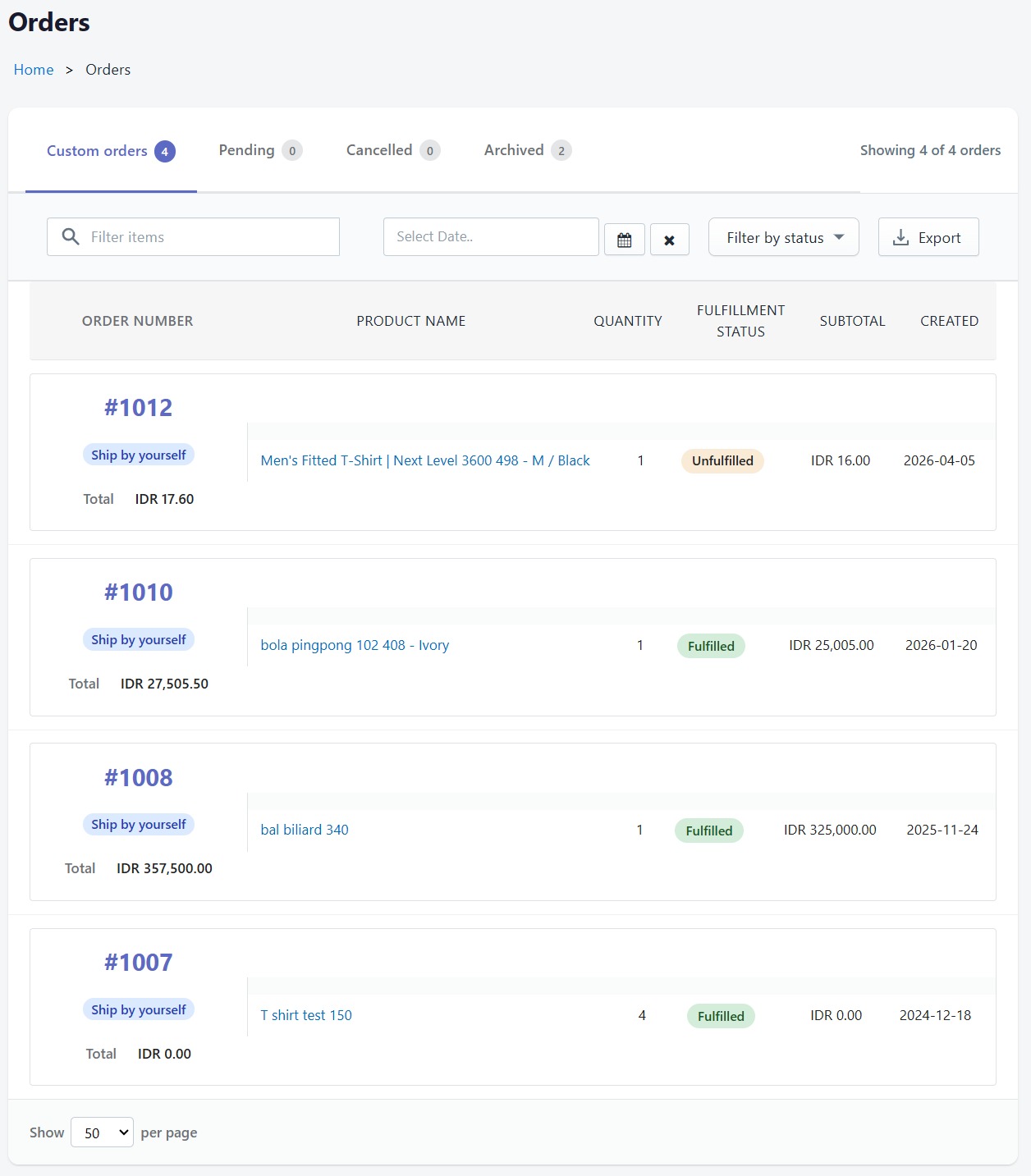
The Orders page shows all orders that include customized products. Orders are organized into tabs:
- Custom Orders — Paid orders with customized products awaiting fulfillment
- Pending — Unpaid orders (payment pending or partially paid)
- Cancelled — Orders that were cancelled by the customer or merchant
- Archived — Completed orders moved to archive
Filter orders by fulfillment type (Printful dropshipping vs. store-fulfilled) and search by order number.
Order Details
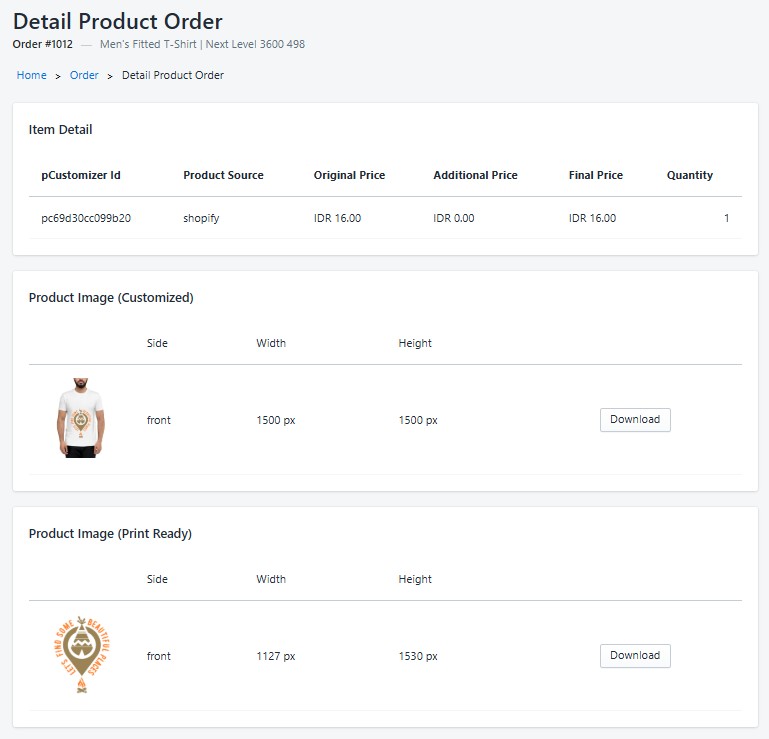
Click any order to view its complete details:
- Customer Information — Name, email, and shipping address
- Line Items — Each customized product with variant details
- Design Preview — Visual preview of the customer's design for each item
- Print-Ready Files — High-resolution PNG files ready for printing, with download button
- PDF Files — Print-ready PDF files generated from print profiles (see below)
- Payment Status — Payment confirmation from Shopify
- Estimated Cost — Printful fulfillment cost estimate
PDF Files
The PDF Files section appears on the order product detail page, below the Print-Ready Files section. It shows the PDF status for each product side.
Automatic PDF Generation
When an order is created through Shopify checkout, PDF files are automatically generated for each product side that has:
- A print-ready PNG image
- A print profile assigned to that side (configured in the custom product edit page)
PDFs are generated at 300 DPI using the print profile's page size, margins, design position, and optional CMYK color conversion settings.
Per-Side PDF Status
Each product side shows one of the following states:
| State | What You See | Action |
|---|---|---|
| PDF available | Side name with print profile badge | Download PDF, Print, and Regenerate PDF file buttons |
| No PDF yet | "No PDF generated yet" message | Generate PDF file button |
| No print profile | Warning banner | Assign a print profile in the custom product edit page first |
Download & Print PDF
When a PDF is available for a side:
- Download PDF — Downloads the PDF file to your computer
- Print — Opens the PDF in a print dialog for direct printing
- Regenerate PDF file — Replaces the existing PDF with a newly generated one using the current print profile settings
To enable PDF generation for a product side, assign a print profile through the custom product edit page under Settings > Print Profiles. Without a print profile, the PDF section will display a notice indicating that no profile is configured.
Fulfillment Options
Printful Fulfillment (Dropshipping)
For products connected to Printful:
- Open the order and review the customer's design
- Click "Request Fulfillment" to send the order to Printful
- Printful prints, packages, and ships the product directly to your customer
- Tracking information is automatically synced back to Shopify via webhooks
Self-Fulfillment
For non-Printful products, download the print-ready PNG or PDF files from the order detail page and fulfill the order through your own printing facility. PDF files include proper page sizing, margins, and optional CMYK color profiles configured through your print profiles. Update the order status manually once shipped.
Order Status Flow
| Status | Description |
|---|---|
| Pending | Order received, awaiting fulfillment action |
| Processing | Sent to Printful, being printed |
| Shipped | Package shipped, tracking available |
| Cancelled | Order was cancelled |
Printful Order Actions
- Create Order — Send design files and order details to Printful
- Confirm Order — Approve the order for production
- Check Status — Real-time status check against Printful's API
- Cancel Order — Cancel a Printful order before production starts
Printful webhooks automatically update order status when packages are shipped or returned. Make sure your webhooks are connected (check on the Dashboard).