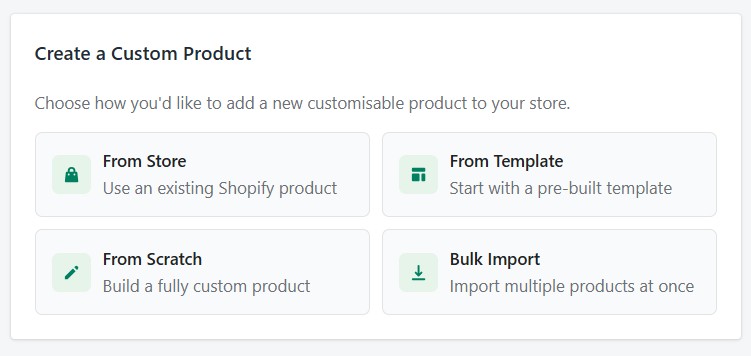
Dashboard
Your command center for managing products, orders, and store performance.
Overview
The Dashboard is the first page you see after logging in to Podmaster. It provides a real-time snapshot of your store's activity, key performance metrics, and quick access to common actions.
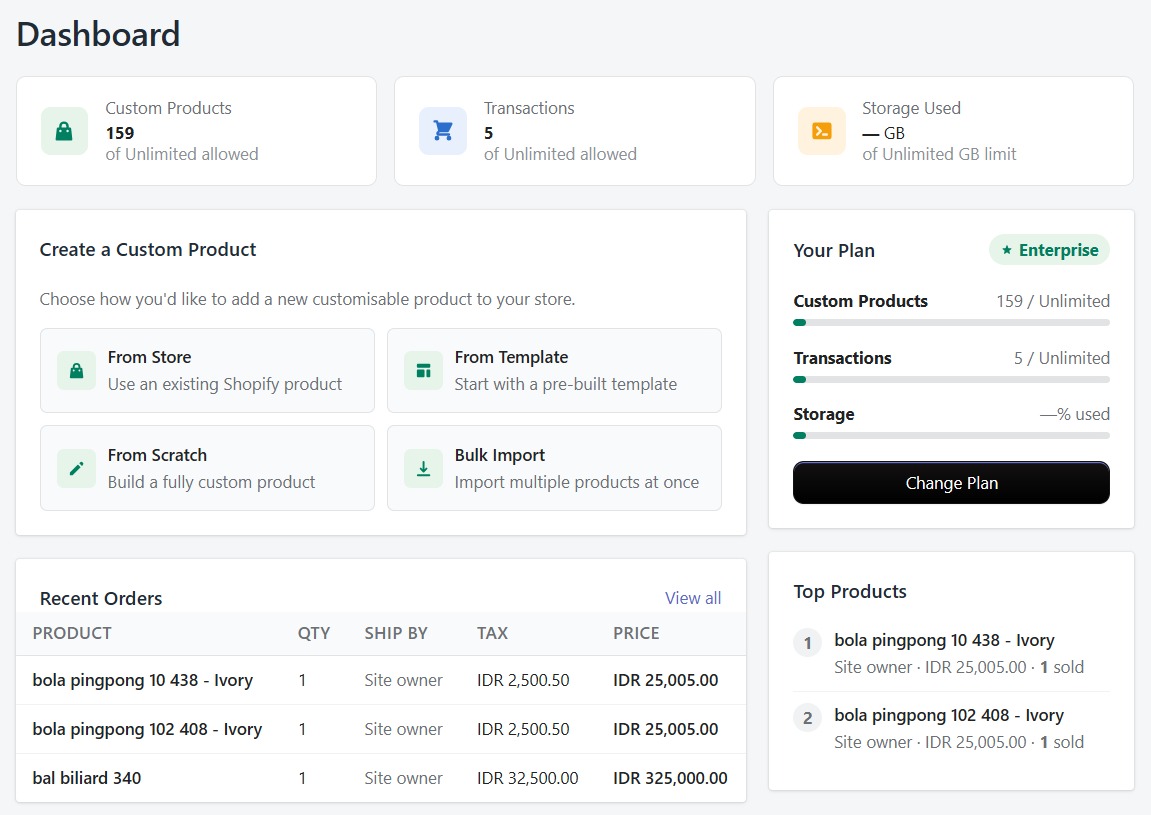
Dashboard Components
Subscription Status
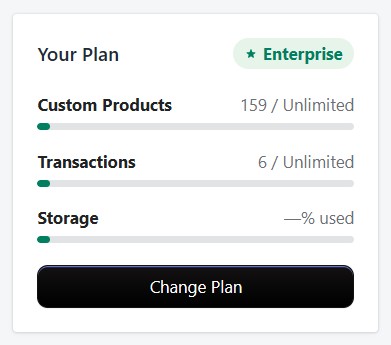
At the top of the dashboard, you'll see your current plan details including the plan name, billing cycle, and any remaining trial days. If you're on a free trial, a countdown shows how many days remain before billing begins.
Storage Usage
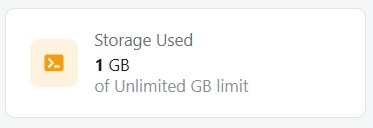
A visual progress bar shows how much of your plan's S3 storage you've used. This includes all uploaded images, designs, fonts, and generated print files. If you're approaching your limit, consider upgrading your plan or removing unused assets.
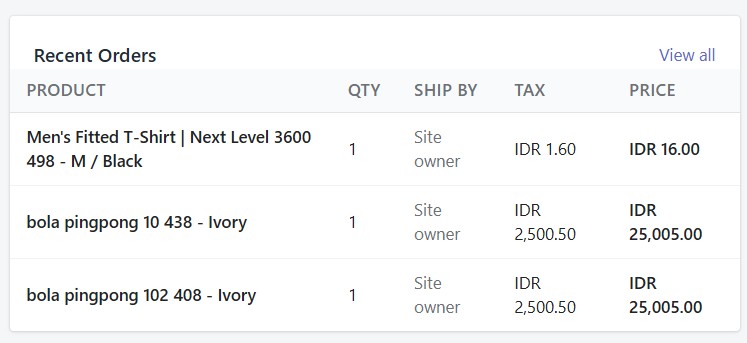
Recent Orders
A quick list of your most recent paid custom orders with their current status (pending, processing, shipped, or cancelled). Click any order to view its full details and customer design files.
Order Transactions
A history log of order processing events, including Printful fulfillment requests, status updates from webhooks, and payment confirmations.
Webhook Status
Shows the health of your Shopify and Printful webhook connections. Green indicates active and connected; red means disconnected. If webhooks are down, order sync and Printful status updates won't work automatically.
Check your webhook status regularly. If webhooks are disconnected, Printful order updates and shipping notifications won't sync automatically. Use the "Repair Webhooks" button if you see a red status.
Setup Reminder Card
If any steps were skipped during the installation wizard, a "Complete your setup" card appears near the top of the dashboard. It lists each incomplete item with an action button and a dismiss option.
| Reminder | What it means | Action |
|---|---|---|
| Activate the Customizer | The Podmaster app block has not been enabled in your Shopify theme. Customers cannot see the "Customize" button on product pages. | Click "Activate now" to return to the wizard's activation step. |
| Create your first product | No custom products have been created yet. The storefront customizer has nothing to show customers. | Click "Create product" to go to the product creation page. |
Click Dismiss next to any item to permanently hide it. The entire card disappears once all reminders are either completed or dismissed.
Getting Started Video
For new installations, a welcome card with a short tutorial video is shown until dismissed. It walks through the core Podmaster workflow from product creation to customer checkout.
Quick Actions
The dashboard provides shortcut buttons for common tasks:
- Create Product — Jump directly to the product creation flow
- View Orders — Open the orders management page
- Open Settings — Access the settings hub
- View Reports — Check your sales analytics