
User Access & Staff
Add staff members to your Podmaster account with role-based permissions.
Overview
Podmaster supports staff accounts so you can give team members access to manage products, orders, and settings without sharing your main Shopify admin credentials. The number of staff accounts depends on your plan (up to 5 on Premium).
Adding Staff Members
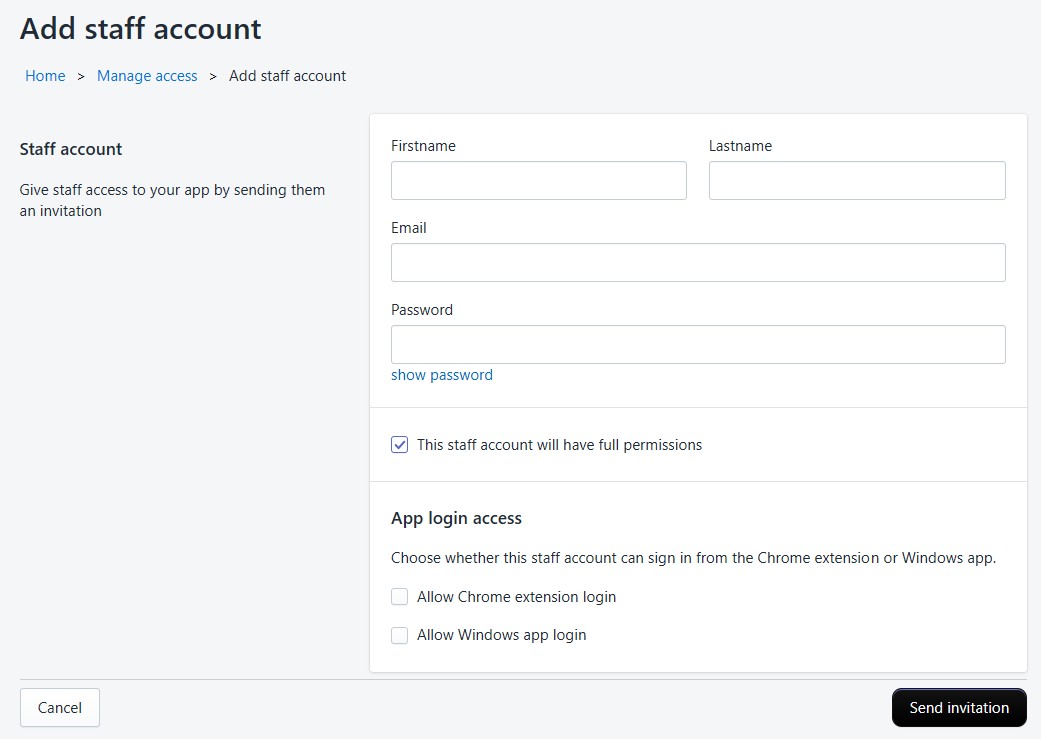
Navigate to User Access
Go to the User Access page from the main navigation.
Add staff member
Click "Add Staff" and enter their email address.
Set permissions
Assign a permission level: Full Access or custom permissions for specific features.
Send invitation
An activation email is sent to the staff member with a link to set their password.
Permission System
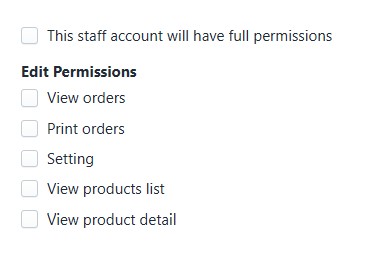
Podmaster uses a granular permission system powered by role-based access control:
- Full Access — Complete access to all features and settings
- Custom Permissions — Selectively grant access to: Products, Orders, Reports, Settings, Assets, etc.
Managing Staff
- Deactivate — Temporarily suspend a staff member's access without deleting their account
- Restore — Reactivate a suspended staff member
- Remove — Permanently delete a staff account
- Edit Permissions — Change a staff member's access level at any time
- Reset Password — Send a password reset link to a staff member
Staff Login
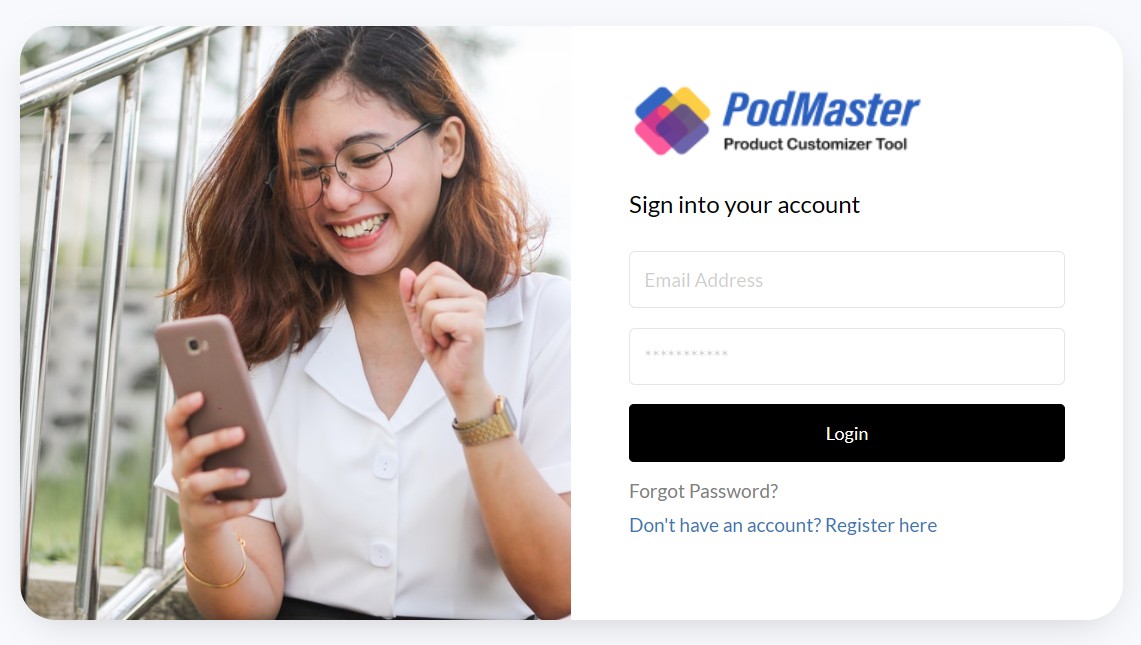
Staff members log in through a separate login page using their email and password. They do not need a Shopify account — authentication is handled entirely within Podmaster.
Staff account limits: Standard plan (2), Business plan (3), Premium plan (5). Upgrade your plan if you need more staff accounts.